
In a connected world we live in, we often have the need to share everything with our loved ones regardless if they’re far away. There are various file upload options for mobile users such as transferring photos from an iPhone or iPad to PC or uploading files to a certain website or cloud storage like Dropbox and Google Drive.
Times have indeed changed, including the way people transfer large files and perform file uploads and file sharing. Whether you want to share your travel photos with your family, send large files to your colleagues, or send an audio message to a friend, file upload apps are convenient for iOS users.
There are frontrunners in this technology like the Picup app, a native iOS app that features online file uploads. Many platforms now work similarly to Picup, where you simply choose your files and upload them to the app’s servers. They don’t just facilitate file-sharing in-app but through web browsers as well. Such platforms like Picup work as a stand-alone upload app to other platforms such as Dropbox and imgur.com.
If you are looking for other options to share and transfer your files, we’ve listed down nine of the best file upload apps for iOS that come in handy for uploading or sharing photos, videos, documents, music, and other types of files.
1. SHAREit
Price: Free
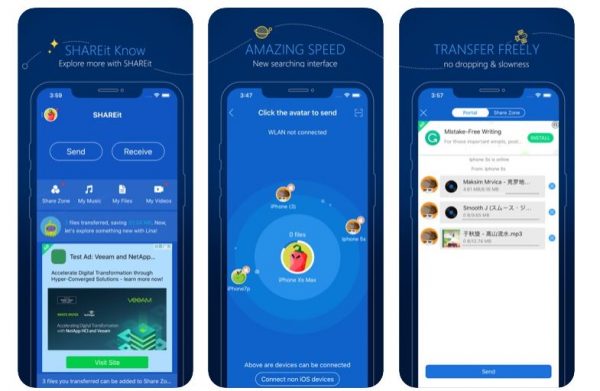
A file upload app list wouldn’t be complete without SHAREit. It’s one of the most popular and reliable file-sharing apps for both iOS and Android devices. Through this file upload app, there’s no need for you to use your mobile data when file-sharing. You have the option to connect to a WiFi or mobile hotspot.
SHAREit is compatible with all types of files and allows you to search for specific files. Once file-sharing is completed, users can have a preview of all the files through its built-in player. It is integrated with share zone and group sharing. SHAREit also supports more than 20 different languages.
Pros
- – Additional features such as group file-sharing
Cons
- – Numerous ads
2. Xender
Price: Free
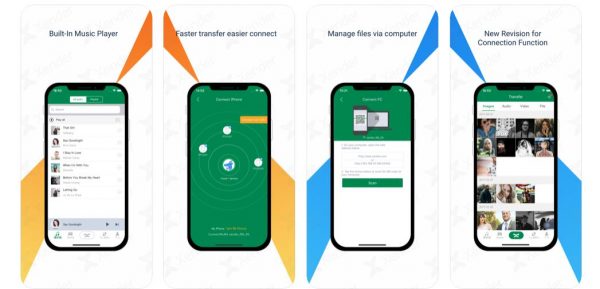
Xender has revolutionized the way people upload and share files. With Xender, you can share almost anything with a few taps of a button. From photos to audio files, Xender allows file upload and sharing within a few seconds across multiple iOS and Android devices.
Xender has a simple, straightforward, and user-friendly interface, making it one of the best file upload apps for iOS users. For a more convenient file-sharing within iOS devices, Xender integrates a dedicated button for connecting an iPhone/iPad. Xender’s Phone Replication feature makes it easier for you to switch to a new iOS device, allowing you to upload your files from your iPhone/iPad to another. Xender is one of the apps for file-sharing that doesn’t require any payment. It also features support for 17 languages,
Pros
- – Simple and straightforward interface
- – No ads
Cons
- – Minimal crashes
3. Feem v4
Price: Free | Premium: $4.99
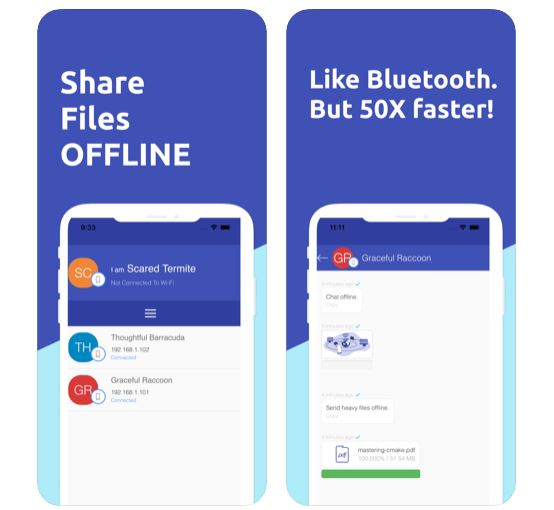
One of the most convenient apps for file upload and file-sharing is Feem v4. With Feem v4, you don’t need to connect to an active Wi-Fi/internet connection. You can instead set up a local Wi-Fi network. For successful file-sharing, both Android and iOS mobile phones must download and install Feem v4 and set up a username for pairing.
Through this file upload app, you can tap on the iPhone/iPad where you want to upload and share files. Once done, you can easily approve the specific files on the paired devices. Feem v4’s interface is similar to messaging apps. You can even chat with your recipient on the other device. For security purposes, instant messages are automatically removed after two days.
Aside from iOS, Android, Windows, and Mac platforms, Feem v4 features a desktop version.
Pros
- – Instant messaging integration
- – Simple user interface
- – File-sharing can be resumed
Cons
- – Redundant pop-ups to upgrade
- – cluttered usernames
4. Send Anywhere
Price: Free | Premium: $4.99
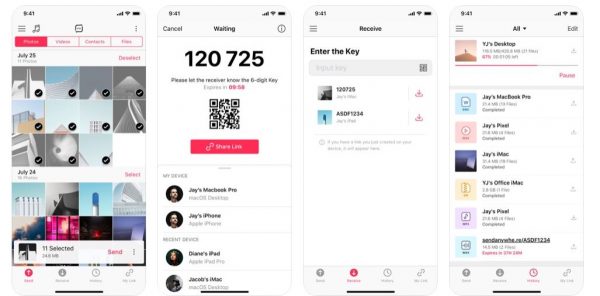
Send Anywhere is a file upload and sharing app that features robust security when it comes to file-sharing. It is compatible with a diverse range of platforms, ranging from Android to Mac devices. For data privacy and security, the Send Anywhere app generates a six-digit code when sharing files with someone.
That said, the receiving end must input the six-digit security code from the sender first before file-sharing starts. Also, Send Anywhere allows file-sharing through a generated link for uploading and downloading specific files. In terms of connectivity, Send Anywhere works if both sender and receiver are connected to an active internet connection.
Pros
- – Extra features such as music and video playback
- – Safe and secure file-sharing
- – Fast and reliable
Cons
- – File-sharing progress not working on the background
- – Requires internet to work
5. Zapya

Price: Free
Zapya is a hybrid between SHAREit and Xender. Aside from multiple-file-sharing compatibility, Zapya allows numerous ways to connect with the iPad and iPhone. With Zapya, you can use a QR code or shake your device to start the file-sharing process. This file upload app also allows group sharing similar to SHAREit.
For file-sharing, users can simply choose the specific files and tap the Send button. If other iPhones and iPads are connected with the same Wi-Fi/internet connection, they automatically appear on the screen. Once file-sharing is accepted, all files will reflect on the paired device.
Pros
- – Easy to navigate
Cons
- – Numerous tabs
6. MyMedia
Price: Free | Premium: $2.99
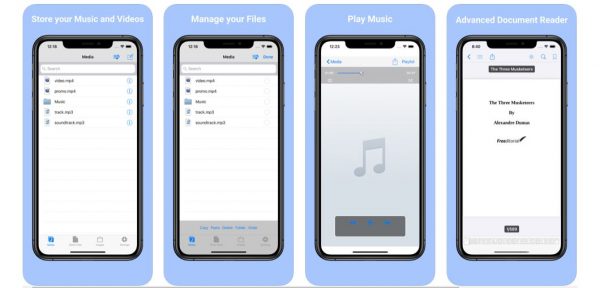
Another file upload app for iOS devices on our list is MyMedia. With MyMedia, you can easily manage your iPhone or iPad through its file manager feature. Through this feature, you can view, edit, and extract zip files, as well as sharing them across multiple platforms.
MyMedia also features an audio playback, allowing you to manage your songs and stream them through the iPod. As part of MyMedia’s security integration, a passcode lock feature restricts your app from unauthorized access. Despite supporting only four languages, it’s still one of the best file upload apps that work wonders.
Pros
- – Robust app for streaming music
- – Built-in search functions
Cons
- – Minimal crashes
- – Inappropriate ads
- – Files not arranged in an organized view
7. File Transfer App
Price: Free | Premium $4.99
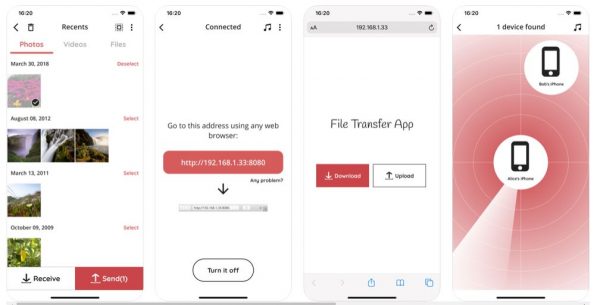
One of the highly-rated file upload apps on the App Store is File Transfer App. It has garnered a lot of positive feedback due to its unique and easy-to-use features. Through the File Transfer App, users can easily transfer different types of files between different iOS devices. The app doesn’t require file upload to cloud servers using an active internet connection.
File Transfer App features two transfer modes, namely, file-sharing between iOS devices through Wi-Fi and multiple sharing using a web page. Also, this file upload app has a built-in MP3 player for audio files, as well as creating audiobooks or song playlists.
As part of its security practice, the File Transfer App doesn’t store any files on any third-party servers. For smooth and convenient file-sharing, the app doesn’t require any registration or sign-in.
Pros
- – Extremely simple and straightforward to use
- – Unlimited file transfers
- – Ultra-fast and convenient file-sharing and transfers over local networks
Cons
- – Plenty of pop-up ads
- – Manual JPEG/JPG format conversion inconvenient for newbies
8. Documents by Readdle
Price: Free | With In-App Purchases starting at $12.49
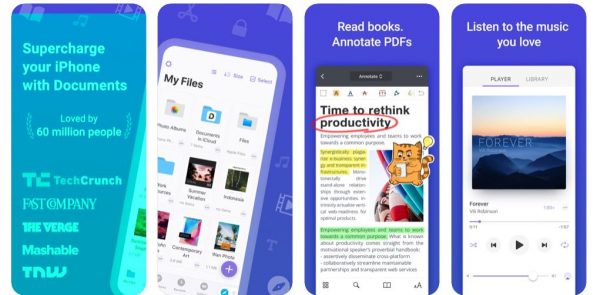
Documents by Readdle is a comprehensive one-stop-shop for all your file upload and file-sharing needs. As one of the best file-sharing apps on this list, Documents by Readdle isn’t only limited to basic import and saving of files. With this app, you can also integrate popular cloud-based services such as Google Drive, Dropbox, and other platforms without downloading them.
That said, you can easily open any personal and business files with just a simple tap of the button. Documents by Readdle is also integrated with VPN features so you can easily send emails or complete online banking transactions without fear of being compromised.
Documents by Readdle is a cloud-service integrator, file manager, video and music player, PDF reader, and document viewer all rolled into one convenient and easy-to-use app.
Pros
- – Highly flexible app that allows annotating or editing PDF documents
- – Comprehensive app for managing, editing, and sharing music, videos, and documents
Cons
- – Expensive
- – Permanent deletion of file not supported
9. Instashare Air Drop
Price: Free | Premium $0.99
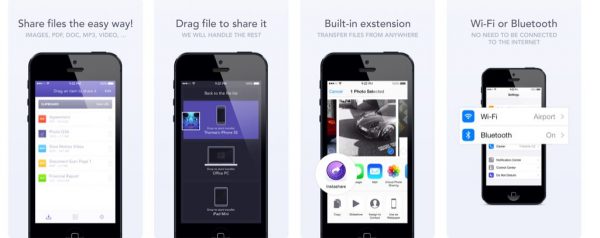
If you want a replacement for Apple’s AirDrop feature, you can try Instashare Air Drop. It doesn’t only work with iOS devices but also allows seamless file transfers for Android too. With Instashare, you can upload different types of files and share them with others even without an active internet connection.
It’s similar to AirDrop, allowing instant file transfers to different devices within a local network. Aside from iOS and Android ecosystems, Instashare is also compatible with Mac and Windows operating systems. That said, it’s one of the best file upload apps for team collaboration within school and office work.
Pros
- – Simple and straightforward user interface
- – Easy and seamless file upload and sharing between two devices
Cons
- – Minimal crashes when sending large files
- – Intermittent file-sharing
- – No security integrations such as a passcode key
Final Word
Since the rivalry between iOS and Android devices are never-ending, we’re still grateful that numerous file upload apps support multiple devices. If file upload apps are restricted to specific platforms or operating systems, we would still resort to basic and traditional methods for file uploads and file-sharing.
Thanks to all the developers of the apps that we’ve highlighted in this article, file-sharing has never been this easy and convenient. Do you have any recommendations regarding file upload apps that support multiple platforms? Please share your insights and suggestions in the comments below!
